
 A gentle, calming nightly automation designed for safety, comfort, and independence.
For many seniors, nighttime is when the home feels vast and uncertain.
Lights need to be adjusted, devices checked, doors secured — and all at a time when energy is lowest.
With a single voice command like “Goodnight” or a scheduled action, the system can:
-
Dim or turn off lights
-
Adjust the thermostat
-
Lock the doors
-
Arm security mode
-
Remind you of medications
-
Silence non-critical notifications
-
Provide gentle reassurance
-
Create a calm transition into rest
This guide walks you through the universal structure of the routine, followed by setup instructions for Google/Gemini, Alexa, Apple Home, and SmartThings.
⭐ PART 1 — The Universal Routine Blueprint
This is the Ironcrest signature approach: one blueprint that works across all systems.
You’ll use this structure no matter which platform you own.
Trigger
One of the following:
-
Voice command: “Goodnight”
-
Tap on a smart display
-
Scheduled time (e.g., 10:00 PM)
-
Motion sensor (bedroom entry)
-
Button or bedside remote
Core Actions
These should work in every home with basic smart devices:
-
Dim lights to 20%, wait 2 minutes, then turn them off
-
Turn off living room / kitchen devices
-
Lock smart door locks
-
Set thermostat to nighttime temperature
-
Silence notifications or turn on Do Not Disturb
-
Optionally: play soft sleep sounds for 15 minutes
-
Announce a reassuring message (e.g., “Your home is secure. Rest well.”)
Optional Senior-Focused Actions
These add comfort and safety:
-
Turn hallway or bathroom lights to a low nightlight mode
-
Lower volume on all speakers
-
Check smart camera status
-
Disable vacuum robots
-
Send a check-in notification to a family member
This blueprint ensures your routine works even if Google, Amazon, Apple, or Samsung overhaul their apps later.
⭐ PART 2 — Setting It Up on Your Device
Below are the platform modules.
Users choose their system and follow only that section. Click image to enlarge.
Google Home / Gemini Setup

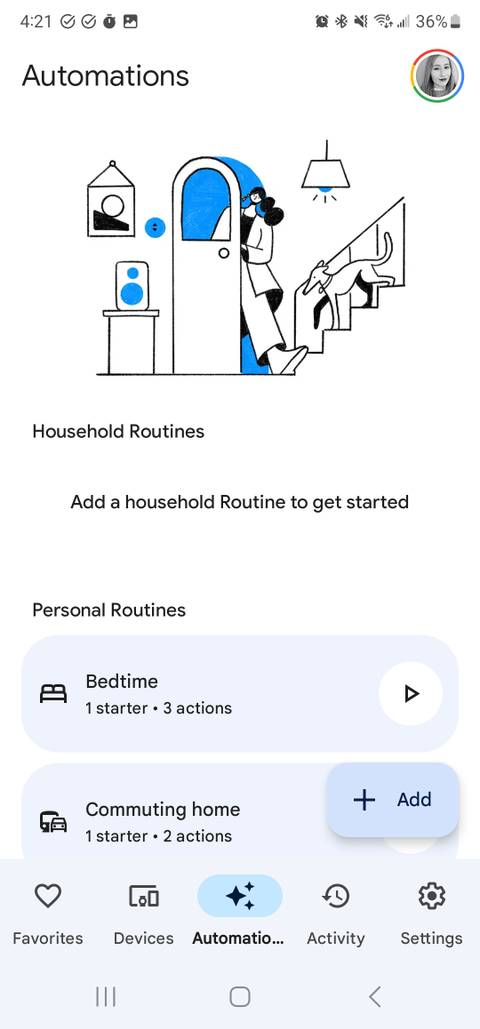
1. Open the Google Home app
Tap Automations → Add → New Routine.
2. Choose your trigger
Select one:
-
“When I say → Goodnight”
-
At a scheduled time
-
When a device triggers (motion, door sensor, etc.)
3. Add actions
Use these recommended steps:
-
Adjust lights → Dim to 20% → Wait → Turn off
-
Set thermostat → Choose nighttime temperature
-
Lock doors
-
Turn off household devices
-
Set your phone to Do Not Disturb
-
Say message → “Your home is secure. Sleep well.”
-
Optional → Play sleep sound / gentle noise
4. Save the routine
Test by saying:
“Hey Google, goodnight.”
Amazon Alexa Setup

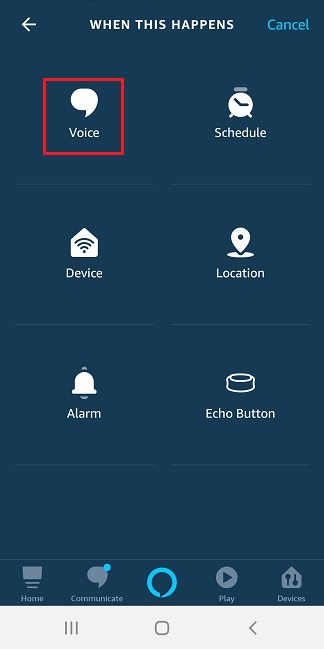
1. Open Alexa → More → Routines → +
2. Name the routine
Example: Goodnight Routine
3. Choose trigger
-
Voice: “Alexa, goodnight.”
-
Schedule: 10:00 PM
-
Smart device trigger
4. Add actions
Alexa supports highly customizable sequences. Recommended:
-
Lights → Set brightness to 20% → After 2 min, turn off
-
Thermostat → Set temperature
-
Smart Locks → Lock
-
Power off devices
-
Alexa Says → “Your home is ready for sleep.”
-
Sound → Sleep music / white noise (optional)
-
Set Do Not Disturb
5. Save and test
Say:
“Alexa, goodnight.”
Apple Home (HomeKit) Setup
1. Open the Home app → Automations → +
2. Choose trigger
Apple allows:
-
Time of day
-
People leaving / arriving
-
Accessory control
-
Sensor input
3. Add actions
-
Turn off main lights
-
Set certain lights to nightlight mode
-
Adjust thermostat
-
Lock doors (if supported)
-
Enable Focus Mode (Sleep)
4. Save
Say:
“Siri, goodnight.”
Samsung SmartThings Setup
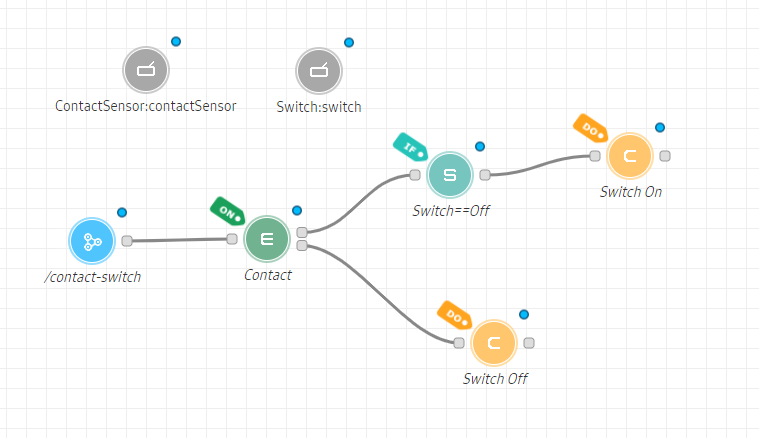

1. Open SmartThings → Automations → Add Routine
2. Choose your trigger
-
Button press
-
Motion sensor
-
Time
-
Voice via linked Bixby/Assistant/Alexa
3. Add actions
-
Turn off devices
-
Dim lights
-
Set thermostat
-
Lock doors
-
Activate a nighttime Scene
-
Delay → then turn off remaining lights
4. Save and test
⭐ PART 3 — Troubleshooting
Routine didn’t run
-
Ensure correct trigger (voice phrase must match exactly)
-
Check Wi-Fi connection
-
Confirm device names in the app
-
Ensure each device is assigned to the correct room
Lights didn’t dim
-
Some bulbs don’t support dimming → replace or remove that action
Doors didn’t lock
-
Make sure smart lock is calibrated
-
Confirm lock is added to the same platform
Voice assistant didn’t hear the command
-
Reduce background noise
-
Move speaker to a more central location
-
Train device on your voice (if available)
⭐ PART 4 — Optional Enhancements for Seniors
✔ Nighttime Safety Lights
Hallway or bathroom lights automatically turn on at 10% when motion is detected after 10 PM.
✔ Check-in Notification
System sends a nightly “Goodnight” confirmation to a loved one (Alexa + Google support this via routines + messaging apps).
✔ Emergency Access
Add a bedside button that triggers help if needed.
✔ “Calm Environment” Mode
Reduce noise, dim all displays, silence alerts.
✔ Voice Confirmation
“All doors are locked. All lights are off. Your home is safe.”

No comments:
Post a Comment